I Learned About Every M365 App So You Don't Have To

I started working at Bulb at the beginning of March and if I've learned anything in my time here, it is this: M365 is the most convoluted and confusing ecosystem of apps and programs I have ever used... and I spend most of my day working with Adobe products!
Some apps do the same things as other apps, some apps have features which take you into other apps when you click on a button, and some apps just aren't even apps but they're called apps. It can be really confusing and it took me a lot of hours of frantic googling and Copilot messaging to get up to speed.
Today I'm going to try and take my hours upon hours of research and condense it into a straightforward format so you can get up to speed like I did.
I recommend running through the whole thing so you can be a master of M365 and surprise your coworkers with your niche knowledge of Kaizala and Sway (I bet you've never even heard of those before!) But, if you're only interested in learning about a few specific apps, Ctrl + f is your friend! Let's get started with our core functionality apps.
Core Functionality Apps
Copilot
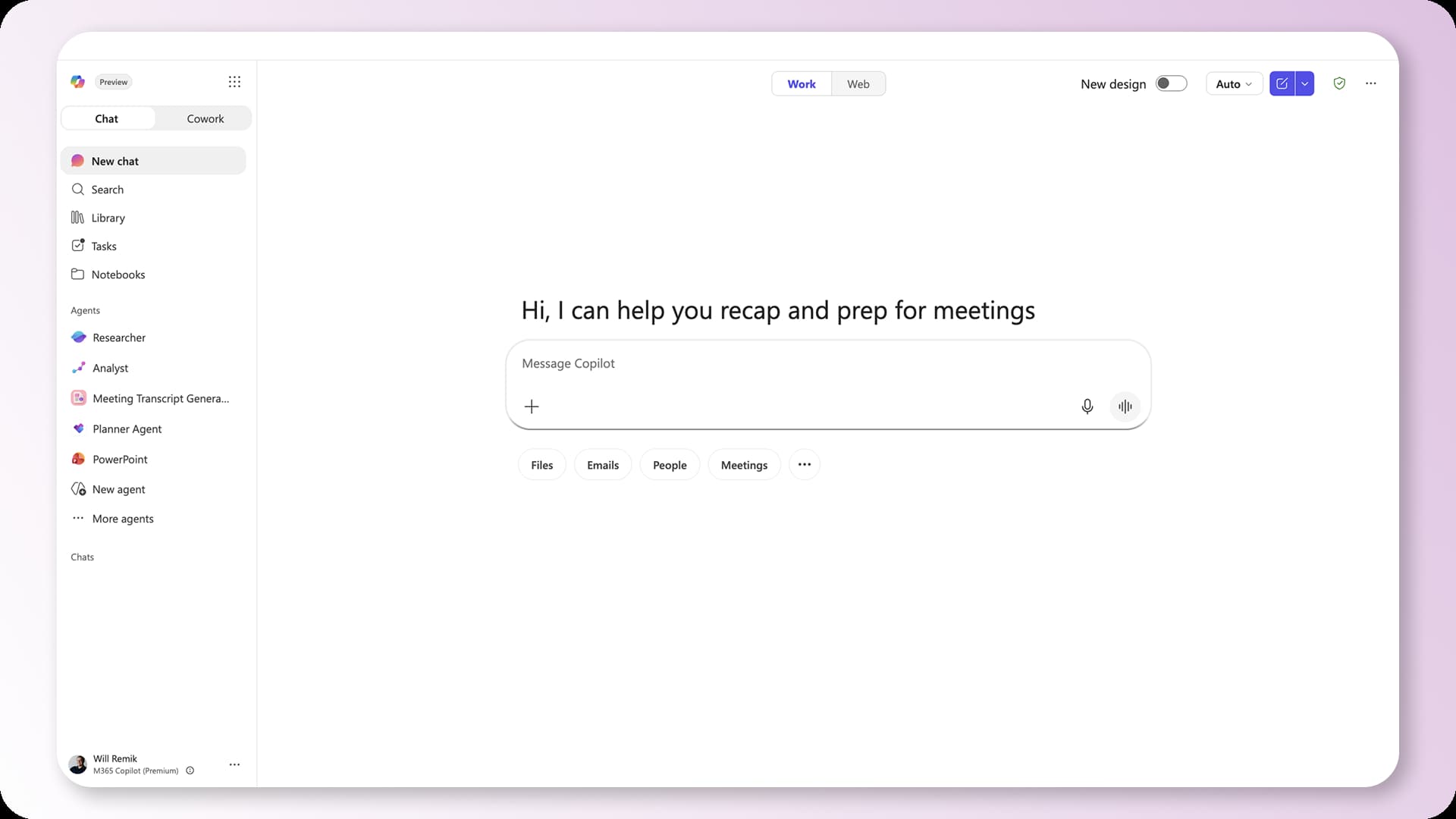
Let's start off with an app that will throw us directly into the deep end with discussing how confusing M365 can be. Copilot is an app but it is also a functionality that exists almost everywhere in M365. The app itself is a general-purpose AI assistant that can help you search for information, summarize content, generate text, analyze files, and answer questions using both the web and also your work files.
The confusing part is that when you see Microsoft talk about Copilot, they might be referring to the Copilot app, or they could be referring to the Copilot chat experience inside another app, or app-specific Copilot features in tools like Word or Excel. They're all "Copilot", but they're not all the same thing. Understanding the difference between the Copilot app and Copilot as a capability is one of the first hurdles to making sense of modern Microsoft 365.
What You Can Do With It
The Copilot app acts as a central hub for AI across Microsoft 365. You can ask questions about your work, summarize documents and meetings, draft content, analyze files, generate images, and search across your organization's information using natural language. Think of it as the front door to Microsoft's AI experiences, even though many of those same capabilities also show up inside apps like Word, Teams, Outlook, and Excel.
Who should learn it?
Everybody.
Who can ignore it?
No one.
My take
Microsoft hasn't exactly been subtle in its efforts to get people to try Copilot, and that has understandably turned some people off. That said, once I got past the marketing and started using it in my day-to-day work, it quickly became one of the most valuable tools in my Microsoft 365 toolkit. Even though it comes with some issues, It's one of the few apps on this list that I would truly miss if I didn't have access to it.
If you want to learn more about how to use Copilot, check out our YouTube video on it here. If you want an even deeper dive on how to use Copilot, check out our new Copilot Foundations Pro Pack.
Word
I don't think I really need to say much about this one. Word is Microsoft's word processor. It's where millions of documents, reports, letters, proposals, and school assignments have been written for decades. Surprisingly though, this blog isn't being written in Word. Welcome to your first instance of "multiple apps can do the same thing" that will become a recurring theme throughout this list.
What You Can Do With It
Word is where you go when a piece of writing needs to become a real document. Whether you're putting together a proposal, a report, meeting notes, or a ninety-page policy document that nobody will ever read, Word gives you the tools to structure, format, review, and share it.
Who should learn it?
Most people should, if you don't already know how to use it. You may not use Word every day, but there are 1.2 billion people around the world using it, and you should probably know how to use it.
Who can ignore it?
Anyone who doesn't need to make polished documents for distribution
My take
There isn't really anything super exciting here. This is a word processor that most people are going to need to use when they're making polished document.
Excel
Ah yes, the application responsible for convincing generations of office workers that they should probably learn what a VLOOKUP is someday.
At its core, Excel is a spreadsheet application used to organize, calculate, analyze, and visualize data. While many people know it as a giant grid of rows and columns, that description undersells what it has become. Excel is effectively a Swiss Army knife for working with information.
It's also distinguished as the only app in the M365 ecosystem to have a competitive tournament based around it... I wish I was joking.
What You Can Do With It
Excel can be as simple or as complicated as you want it to be. Some people use it to keep track of budgets, project plans, inventories, and simple lists. Others use it to build formulas, analyze large datasets, create dashboards, forecast trends, and automate calculations. In many organizations, you'll also discover that Excel has quietly become the foundation for entire business processes that were never intended to live in a spreadsheet but somehow ended up there anyway.
Who should learn it?
Anyone who works with numbers, lists, reporting, or data of any kind will benefit from at least a basic understanding of Excel.
Who can ignore it?
Very few people can ignore Excel entirely, but if your work rarely extends beyond documents, email, and meetings, you probably don't need to learn much beyond the basics.
My take
Excel is an incredibly powerful tool that can probably do way more things than you know. It's one of the few apps in Microsoft 365 that seems equally capable of helping you organize a grocery list or run an entire department. Not every spreadsheet should exist, but Excel has a funny way of making people believe theirs should.
PowerPoint
PowerPoint is Microsoft's presentation software used in corporate environments for quarterly business reviews, sales pitches, and meetings. At its core, it's a tool for communicating ideas visually by building slides with text, images, charts, and graphics that you can present live, record, or share as a file.
What You Can Do With It
PowerPoint's primary job is helping you communicate ideas visually. Whether you're pitching a new initiative, presenting business results, training employees, teaching a class, or trying to persuade someone that your idea is the least terrible option on the table, PowerPoint gives you the tools to combine text, images, charts, video, and design into a presentation others can follow.
Who should learn it?
Anyone who regularly presents ideas, trains others, shares updates, pitches projects, or communicates to groups will get value from learning PowerPoint.
Who can ignore it?
Personally, I think everyone should learn the basics of building and designing a good presentation. Even if you're not presenting ideas at the current point in your career, you will inevitably find yourself needing to make a PowerPoint someday and you'll wish you had started learning sooner.
My take
PowerPoint is one of those applications that everyone knows exists, but not everyone realizes how important it becomes as your career progresses. The more often you're asked to share ideas, explain concepts, train others, or influence decisions, the more likely you'll find yourself building slides. Love it or hate it, PowerPoint isn't going anywhere.
OneNote
If you've seen our content before, you probably know we're not the biggest fans of OneNote. That being said, it's still used by millions of people around the world and has been a staple of Microsoft 365 for years. OneNote is Microsoft's digital notebook, designed to give you a flexible place to capture information, organize notes, and keep track of ideas.
Where Word is focused on creating polished documents, OneNote is focused on getting things out of your head and onto a (digital) page.
What You Can Do With It
Meeting notes, project research, screenshots, random thoughts, to-do lists, and reference material can all live in the same notebook. You can create separate notebooks, sections, and pages to keep things organized, share notebooks with others, and build up a personal knowledge base over time. Whether that's a feature or a flaw depends on who you ask, but there's no denying that OneNote gives you a lot of flexibility in how you capture and store information.
Who should learn it?
Everyone that is looking for digital note taking. That being said, my recommendation is to give Loop a chance before turning to OneNote.
Who can ignore it?
Anyone who already has a note-taking system that works well and has already tried out Loop.
My take
OneNote was first announced in 2002. The age of the software shows in the feature set and Microsoft has struggled to adapt the tool for the modern workplace. With that in mind, billions of people around the globe have found value in the tool so it has to be doing some things right.
Loop
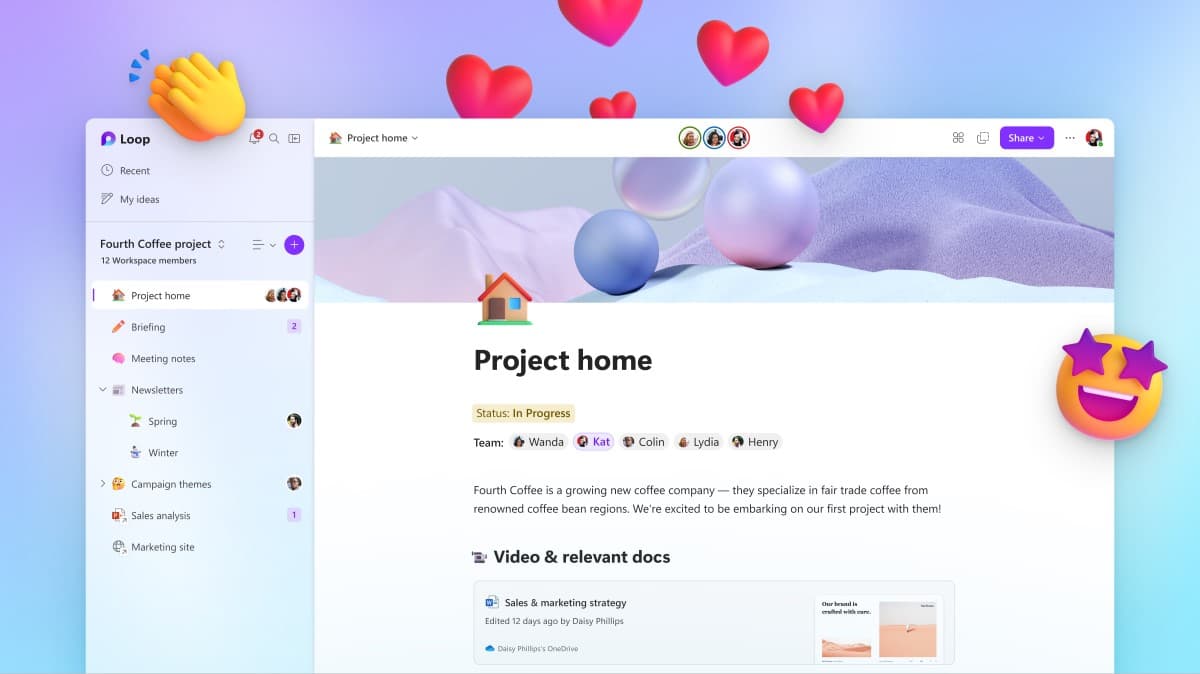
Loop is Microsoft's attempt to rethink how teams collaborate. Rather than creating traditional documents, Loop gives you flexible pages and workspaces where people can brainstorm, plan, take notes, track tasks, and work together in real time. One of its most unique features is a system called "Components," which are pieces of content like tables, task lists, or notes that can be embedded in places like Teams chats, Outlook emails, and other Microsoft 365 apps while staying synced everywhere they're used.
What You Can Do With It
Loop is built for collaborative work. You can create shared pages for meeting notes, project planning, brainstorming sessions, documentation, task tracking, and just about anything else that involves multiple people contributing information over time. Unlike traditional documents, Loop pages are designed to stay flexible and evolve as work progresses.
Personally, I manage almost everything inside Loop. Our entire content calendar lives there, with dedicated pages for planning videos, blog posts, and other projects. I also use something I call my Everything Page, which serves as the hub for most of my personal tasks, notes, reminders, and loose thoughts.
I've tried tools like Planner and To Do, but Loop's flexibility works much better for the way my brain operates. Instead of forcing information into separate apps or rigid systems, I can keep everything in one place and organize it however I want. That's really the appeal of Loop. The possibilities are almost endless, and its collaboration-first design makes it incredibly easy to share ideas, coordinate work, and build a system that fits the way your team actually works.
Who should learn it?
People who collaborate heavily with others, constantly juggle notes, tasks, and projects, or feel like information is scattered across too many apps will get a lot of value out of Loop. If you're the kind of person who likes building a system that works the way your brain works, Loop is worth exploring.
Who can ignore it?
If you already have a system for notes, tasks, and are able to effectively collaborate with your team, Loop certainly is not essential.
My take
The more I use Loop, the more I find reasons to use it. What started as a collaboration tool has become the center of both my personal organization system and our content planning process. It's not perfect, and not everyone will click with its flexible approach, but it is the #1 app I use in M365.
Edge
Edge is Microsoft's web browser. It lets you access websites, web apps, and online services, just like Chrome, Firefox, or Safari. There is a good chance you've used it once or twice in your day to install Chrome.
What You Can Do With It
At the end of the day, Edge lets you browse the web. We joke that its primary purpose is helping people download Chrome, but that's really not giving modern Edge enough credit. It's miles ahead of the old Internet Explorer days and, since it's built on Chromium, it's more similar to Chrome than many people realize.
Like a lot of tools in Microsoft 365, there are some really good alternatives, but Edge's strength comes from how well it integrates with the rest of the Microsoft ecosystem. Features like work profiles, Microsoft 365 account integration, Copilot, Collections, and seamless access to your work resources can make it a surprisingly effective place to get work done. If you're living inside Microsoft 365 all day, Edge fits into that experience better than you might expect.
Who should learn it?
There's not much to learn. If you're already using Microsoft 365, it's worth opening Edge and giving it a chance before immediately downloading another browser.
Who can ignore it?
Anyone who's given it a chance and prefers something else.
My take
There's not a whole lot to have a take on here. It's a web browser. That said, if you wrote Edge off years ago because of Internet Explorer or early versions of Edge, I'd encourage you to give it another shot. I did, and while I still use Chrome in my personal life, Edge has become my browser of choice for work.
Outlook
Outlook is Microsoft's email and calendar application. On paper that sounds simple enough. In reality, it's the command center for a huge portion of modern office work, serving as the place where conversations happen, meetings get scheduled, and your carefully planned day goes to die under a flood of new emails.
What You Can Do With It
Outlook is where most people manage two of the biggest realities of office life: email and meetings. You can send and organize emails, schedule meetings, manage your calendar, share availability with coworkers, and generally keep track of what's supposed to be happening and when.
As you explore Microsoft 365, you may also come across an app called People. Don't spend too much time wondering what it does. It lives inside Outlook and essentially acts as your organization's contact book.
Who should learn it?
If you're working in a Microsoft 365 environment and don't already know your way around Outlook, I'd put it near the top of your learning list. Email and calendars are still at the center of how most organizations communicate, and Outlook is where a lot of that work happens.
Who can ignore it?
Not many people. If your organization runs on Microsoft 365, there's a very good chance Outlook is where your emails, meetings, and calendar live, whether you like it or not. Even if you aren't a heavy email user, you'll almost certainly need to interact with Outlook at some point.
My take
By the nature of my job, I actually don't send or receive a ton of direct emails. Even so, I find myself using Outlook multiple times every day. It's where I manage my meetings, coordinate schedules, reserve rooms, keep an eye on shared inboxes, and generally stay on top of what's happening. Even as Microsoft continues to push tools like Teams, Outlook remains one of the central hubs for getting work done in Microsoft 365.
Collaboration & Project Management
Teams
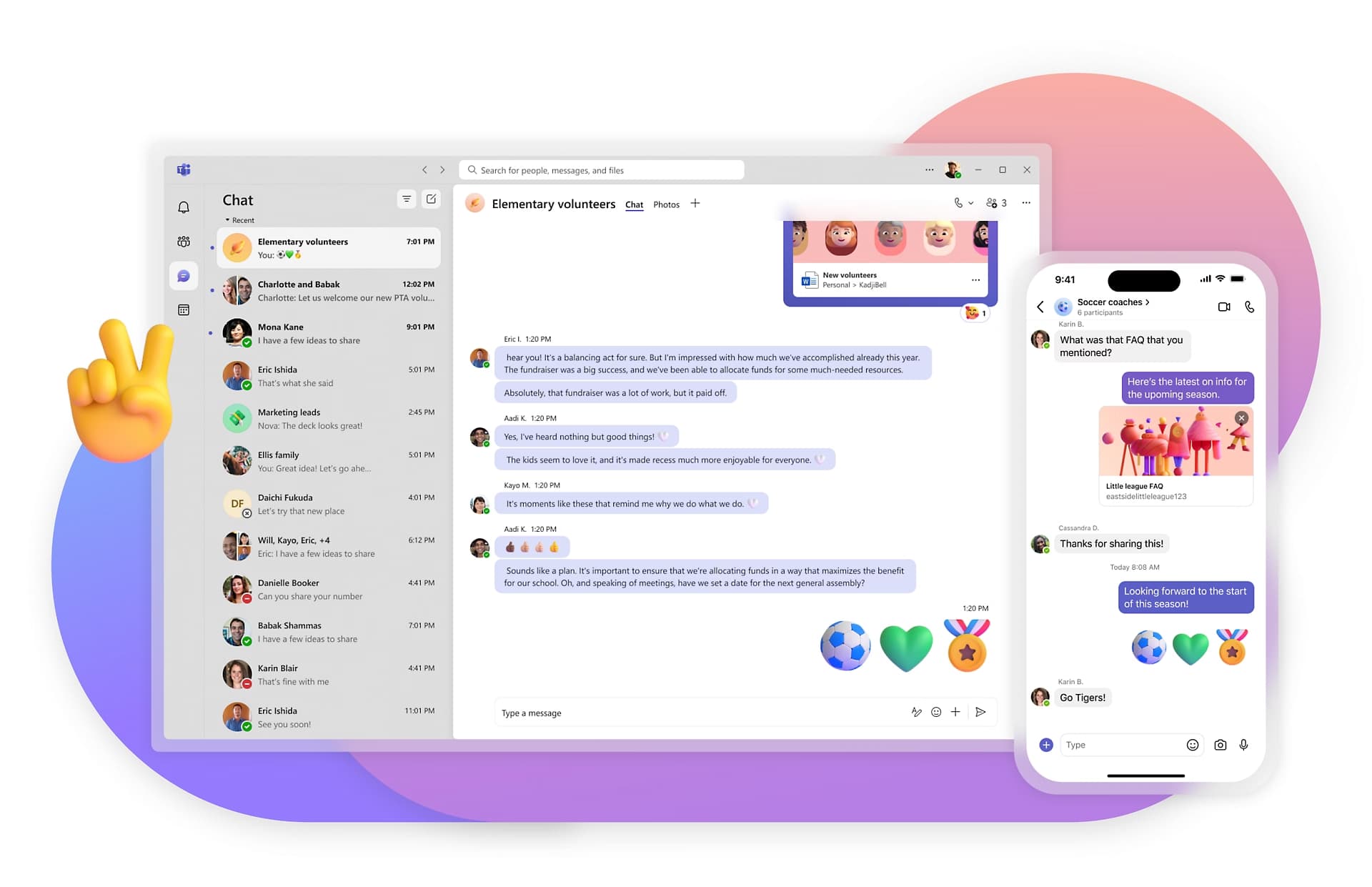
Teams is Microsoft's communication and collaboration hub. It combines chat, video meetings, calling, file sharing, and a growing collection of other tools into a single application that's designed to be the central place where work happens. In many organizations, Teams has become the default way people communicate internally, replacing a lot of the emails that used to clutter inboxes.
What You Can Do With It
At its core, Teams gives you a place to chat with coworkers, hold meetings, make calls, share files, and collaborate on work. Over the years, though, it feels like Microsoft has been steadily transforming Teams from a communication tool into a hub for work itself. More and more Microsoft 365 experiences are showing up directly inside Teams, to the point where you can access things like the full Copilot App, SharePoint sites and files, tasks, apps, and collaborative workspaces without ever leaving the interface.
From a Bulb perspective, Teams is one of the most important applications in the entire Microsoft 365 ecosystem. A lot of our thinking around workplace communication and collaboration revolves around helping organizations move conversations, knowledge sharing, and teamwork into more transparent and collaborative spaces. Teams sits squarely at the center of that thinking, which is why you'll hear us talk about it constantly.
Who should learn it?
If your organization uses Microsoft 365, you should learn Teams. Whether you're messaging coworkers, joining meetings, collaborating on files, or accessing other Microsoft 365 tools, there's a good chance you'll spend a significant portion of your workday in Teams.
Who can ignore it?
Anyone not working in the M365 ecosystem... but if that's the case... why are you here?
My take
I'll admit that I wasn't always a Teams fan. Like a lot of people, my first real experience with it was in 2020 when everyone suddenly had to start living in video meetings, and it wasn't really a great experience. But Teams has come a long way since then. If you tried it a few years ago and wrote it off as clunky or frustrating, it's worth giving another shot. Microsoft clearly sees Teams as the hub for work in Microsoft 365, and whether you agree with that strategy or not, the app has become significantly more capable and much more central to the overall experience.
Whiteboard
What You Can Do With It
Whiteboard is Microsoft's digital whiteboard app. It gives you an infinite canvas where you and your team can sketch ideas, brainstorm, take notes, and map out concepts together in real time.
Who should learn it?
People who regularly facilitate workshops, brainstorm with teams, map ideas visually, or miss having access to a physical whiteboard will get the most value out of Whiteboard.
Who can ignore it?
If your work rarely involves visual collaboration or brainstorming sessions, there's a good chance you'll never need Whiteboard and won't miss it.
My take
Whiteboard does exactly what you'd expect it to do. It's a whiteboard. Personally, I don't use it very often and I tend to reach for other tools when I need visual collaboration. That said, if you just need a simple space to brainstorm, sketch out ideas, or collaborate with a group in real time, it's easy to use and worth a try.
Bookings
Bookings is Microsoft's appointment scheduling tool. It lets people book time with you through a scheduling page instead of forcing everyone to play the "what time works for you?" email game.
What You Can Do With It
Bookings lets people schedule time with you without the usual back-and-forth emails. You can create a booking page, define your availability, and let customers, clients, or coworkers reserve time directly on your calendar. Since it integrates with Outlook and Teams, it automatically handles conflicts, meeting invites, and meeting links for you.
Who should learn it?
Anyone who regularly schedules meetings with clients, customers, prospects, or people outside their organization can save a lot of time with Bookings.
Who can ignore it?
If most of your meetings are internal and people rarely need to schedule time with you directly, you'll probably never have a reason to open Bookings.
My take
Bookings does exactly what it's supposed to do. It's not the most feature-rich scheduling platform out there, and power users may eventually find themselves wanting something more advanced. But if all you need is a simple way for people to schedule time with you without the back-and-forth emails, it gets the job done and integrates nicely with the rest of Microsoft 365.
Forms
Forms is Microsoft's survey and data collection tool. It lets you create forms, questionnaires, quizzes, polls, and feedback surveys that people can fill out online, with all the responses collected and organized automatically.
What You Can Do With It
Forms gives you a quick way to collect information from other people without having to manually track responses. You can create surveys, polls, quizzes, feedback forms, event registrations, and other simple data collection tools, then view the results directly in Forms or export them to Excel for further analysis.
Who should learn it?
Anyone who regularly collects feedback, gathers information, runs surveys, or needs people to submit data in a structured way will find Forms useful.
Who can ignore it?
If you rarely need to collect information from other people, you'll probably never need Forms and can get by just fine without it.
My take
Forms is simple, and that's exactly why I like it. It doesn't try to be a full survey platform or advanced data collection tool, but for gathering feedback, sending a quick poll, or collecting information from a group of people, it gets the job done without much fuss. It also plays nicely with Excel and Power Automate, which opens the door to some surprisingly useful workflows if you want to take things a step further.
Viva
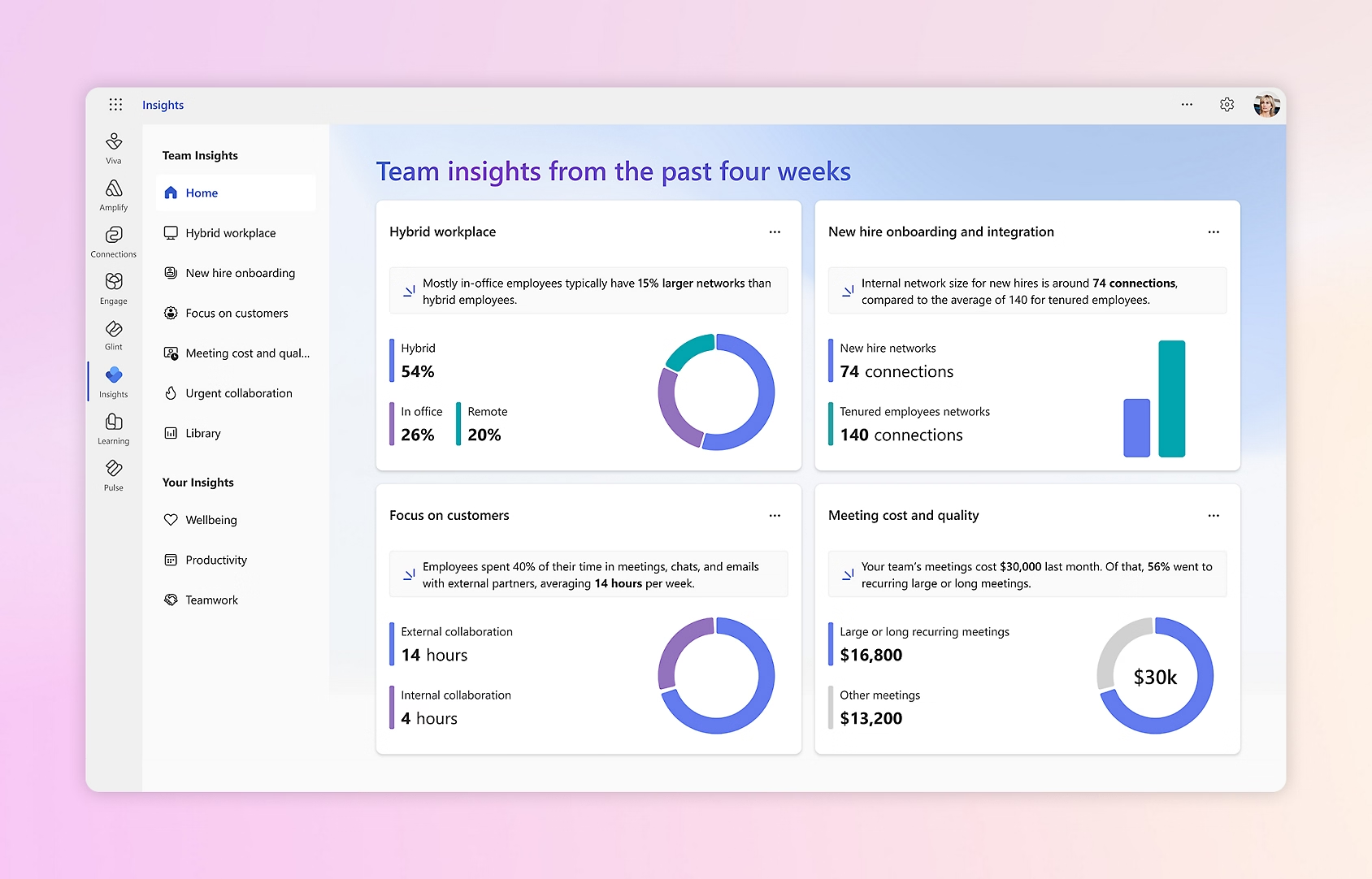
Viva is less of a single app and more of a collection of apps and services focused on employee experience, communication, learning, engagement, and knowledge sharing. To make things even more confusing, many of the things Microsoft calls Viva apps, like Viva Engage, Viva Learning, and Viva Insights, are sometimes listed as separate apps elsewhere in Microsoft 365 even though they're all part of the broader Viva platform.
(If you've made it this far in the article, I'm sure you're shocked to learn that Microsoft has found yet another way to blur the line between what is and isn't an app.)
What You Can Do With It
Viva brings together a variety of employee-focused experiences into one platform. Depending on what your organization has licensed, it can help employees discover company news, connect with coworkers, participate in internal communities, access training and learning content, surface organizational knowledge, and gain insights into their work habits and wellbeing. The goal is to make it easier for people to stay informed, engaged, connected, and productive throughout the workday.
Who should learn it?
People in HR, internal communications, leadership, learning and development, or anyone responsible for employee engagement will get the most value from Viva. If your role involves helping people stay informed, connected, or productive, it's worth understanding what's available in the platform.
Who can ignore it?
If you're an individual contributor who just wants to get your work done, there's a good chance you'll interact with Viva without ever needing to learn much about it. Many of its features are aimed more at organizations, HR teams, and leaders than the average employee.
My take
Viva is one of the harder apps on this list to evaluate because it's really a collection of apps bundled under one name. Most employees will likely interact with parts of Viva without even realizing they're using Viva. Unless you're involved in employee engagement, internal communications, training, or organizational initiatives, I would just use it when you're told to use it.
Planner
Planner is Microsoft's task and project management app. It gives teams a shared place to organize work, assign tasks, track progress, and keep projects moving without relying entirely on emails, spreadsheets, or someone's memory.
What You Can Do With It
Planner helps teams stay organized by giving everyone a shared place to track work. You can create tasks, assign them to people, set due dates, organize work into boards or plans, and track progress as projects move forward. It also integrates with Teams, To Do, and other Microsoft 365 tools, making it easier to keep tasks connected to the rest of your work.
Who should learn it?
Anyone who manages projects, coordinates work across a team, or constantly finds themselves wondering who owns what task will benefit from learning Planner. It's especially useful for teams that want something more structured than sticky notes and more lightweight than a dedicated project management platform.
Who can ignore it?
If you already have a project management tool your team loves, Planner probably won't add much value. If you're only tracking a handful of personal tasks, To-Do might work better for you.
My take
Planner is a feature-limited project management solution and I find it fairly limited compared to dedicated project management tools. In previous roles, I managed multiple projects simultaneously across a team of 15+ people, and I don't think I could have done that effectively if Planner was my only option. For basic task and project tracking, it gets the job done, and for some teams that's all that's needed. As with most apps on this list, I would still encourage you to try it before writing it off.
To-Do
To Do is Microsoft's personal task management app. It's designed to help you keep track of tasks, reminders, and things you need to get done without the overhead of a full project management system.
What You Can Do With It
To Do is exactly what it sounds like: a place to keep track of things you need to do. You can create task lists, set due dates and reminders, organize tasks into different categories, and keep personal work organized across your devices.
Who should learn it?
If you're looking for a very simple, digital method for tracking your tasks give it a look. If you're deeply integrated with the Planner ecosystem, To-Do functions as an aggregator for all of your tasks, so check it out.
Who can ignore it?
If you already have a task management system you love, whether that's Loop, Planner, paper notebooks, or something else entirely, there's no compelling reason to switch.
My take
To Do is about as straightforward as it gets. It's a personal task list, and for a lot of people that's exactly what they need. It's important to understand that To Do is built around personal task management, not team collaboration. The tasks live with you and aren't intended to be shared, assigned, or managed across a team. If you just need a simple place to track your own to-dos, reminders, and follow-ups, it works well.
SELF ASSESSMENT
Is your business getting full value from your M365 subscription?
Billions of dollars are wasted each year on underused subscriptions. Take 3 minutes to find out where your tools are driving results, and where they’re holding you back.
Find Out Now


Is Team Communication Holding You Back?
Find Out in Just 2 Minutes.
Take our quick scorecard to uncover communication gaps and hidden barriers within your team.
Data Management
OneDrive
OneDrive is Microsoft's cloud storage platform. Think of it as your personal file storage space in Microsoft 365 where you can save, sync, access, and share files across devices. While SharePoint handles files that belong to teams and organizations, OneDrive is primarily focused on files that belong to you.
What You Can Do With It
OneDrive gives you a place to store, sync, and access your files from virtually anywhere. Files saved to OneDrive are available across your devices, can be shared with other people when needed, and integrate directly with the rest of Microsoft 365. While it's primarily designed for personal file storage, it's also the place where a lot of your drafts, working files, and documents live before they eventually get shared with a team or moved somewhere more permanent.
Who should learn it?
If you're working on a team, you should rarely be storing files in your OneDrive. We would almost always recommend a more shared location like SharePoint. That being said, there isn't too much to learn with this one!
Who can ignore it?
Almost nobody. Even if you don't actively think about OneDrive, there's a good chance you're already using it whenever you save, sync, or share files from Microsoft 365.
My take
OneDrive is a great place for personal files, drafts, and work that primarily belongs to you. The thing to be careful about is that OneDrive is tied to a person, not a team. If an important file is being actively used by multiple people or needs to outlive your employment at the company, it probably shouldn't live exclusively in your OneDrive. I've seen organizations run into all sorts of ownership and governance issues because important business files were stored in personal OneDrive accounts instead of a team-owned location like SharePoint. Use OneDrive for your files. Use SharePoint for the organization's files. Once you understand that distinction, a lot of Microsoft 365 starts to make more sense.
SharePoint
If OneDrive is your personal file storage, SharePoint is your organization's file storage. It's the platform that powers document libraries, intranet sites, team sites, and a surprising amount of Microsoft 365 behind the scenes. In fact, OneDrive is built on SharePoint technology, and every Team in Microsoft Teams gets a SharePoint site created behind the scenes to store files and content. Even if you've never intentionally opened SharePoint, there's a good chance you've been using it for years without realizing it.
SharePoint is one of the most important applications in Microsoft 365, but it's also one of the most misunderstood. Once you start thinking of it as the home for team and organizational content, rather than just a website builder, a lot of Microsoft 365 begins to make much more sense.
What You Can Do With It
SharePoint is where teams and organizations store, organize, share, and manage information. You can use it to create team sites, build intranets, manage document libraries, create internal pages, and serve as the foundation for other Microsoft 365 tools like Teams, Lists, and OneDrive. In many ways, SharePoint acts as the backbone of Microsoft 365. Even when you're working in another app, there's a good chance SharePoint is quietly handling the content behind the scenes.
For most users, the most important thing to understand is that SharePoint provides a place for information to belong to a team or an organization rather than a specific person. That makes it the ideal home for files, processes, and knowledge that need to be available to multiple people over the long term.
Who should learn it?
Everyone. If you work in Microsoft 365, you should have at least a basic understanding of SharePoint. When I started at Bulb, I had no idea what SharePoint was, but once I learned the fundamentals, I realized how much of Microsoft 365 is built on top of it. You don't need to become a SharePoint expert (that's what we're here for!) Understanding what it is, what it does, and why it exists will make the rest of the Microsoft ecosystem much easier to understand.
Who can ignore it?
No one. If you're using M365 you need to know the basics. If you don't think you do, you're missing out.
My take
SharePoint was one of the most confusing parts of Microsoft 365 when I first started learning the platform. I knew it existed, but I had no idea what it actually did or why everyone kept talking about it. Once I understood that it's the foundation for things like Teams, OneDrive, and organizational file storage, everything started to click. You don't need to become a SharePoint expert, but I genuinely think learning the basics offers one of the highest returns on investment of any app in Microsoft 365 because it helps you understand how so many other pieces fit together.
Lists
Lists is Microsoft's tool for tracking and organizing structured information. If Excel is built around spreadsheets, Lists is built around records and data. Think of things like issue trackers, inventory lists, project registers, onboarding checklists, asset tracking, or any other situation where you're keeping track of a collection of items and their status over time.
What You Can Do With It
Lists gives you a flexible way to track structured information that doesn't fit neatly into a document or spreadsheet. You can build things like inventory trackers, onboarding checklists, project registers, issue logs, content calendars, and just about any other process where you're managing a collection of items with different statuses, owners, dates, or attributes. What makes Lists particularly powerful is that it can serve as a data source for other Microsoft 365 tools.
Who should learn it?
People who find themselves tracking things in Excel that aren't really spreadsheets should take a look at Lists. If you're managing inventories, requests, content calendars, issue trackers, onboarding processes, or other structured information, Lists can be a surprisingly powerful tool. Also, if you find yourself using Excel as a long-term data storage solution, you'd probably benefit from looking into lists.
Who can ignore it?
If most of your work revolves around documents, emails, meetings, and simple task lists, you'll probably never need Lists. It's one of those tools that becomes really valuable when you have a specific use case for it, but doesn't offer much value outside of that.
My take
Lists feels like one of those things that most people are never going to need to know anything about... but for those who can benefit from it, you'll REALLY benefit. If you're working with lots of numbers or business data and you've never heard of it before, you should probably learn the basics of Lists.
Power Platform
Power Apps
For those moments when one of Microsoft's 30+ apps doesn't quite do what you need, Power Apps gives you the ability to build your own solution. It's Microsoft's low-code app development platform, allowing you to create custom business applications without needing a traditional software development background.
Power Apps uses a language called Power Fx, which was intentionally designed to feel familiar to people who already know Excel. If you're comfortable building formulas and logic in spreadsheets, you'll likely find Power Apps much less intimidating than a traditional programming language. The result is a tool that empowers tech-savvy business users to create everything from simple data entry forms to full-fledged applications that connect to the rest of the Microsoft 365 ecosystem.
What You Can Do With It
What can't you do with it? You can create everything from simple forms and data entry apps to inventory systems, inspection tools, approval workflows, and other business applications that connect directly to data stored across Microsoft 365.
The real power of Power Apps comes from its ability to integrate with tools like Lists, SharePoint, Excel, Teams, and the rest of the Power Platform. Instead of changing your business process to fit an existing app, Power Apps lets you build an app inside of the same ecosystem where your business already does work.
Who should learn it?
If you're even remotely tech-savvy and have some professional development time to spare, Power Apps is worth exploring. It's especially valuable for people who constantly find themselves looking at a process and thinking, "There has to be a better way to do this."
Who can ignore it?
If you're not particularly tech savvy and don't find yourself trying to solve problems with technical solutions, Power Apps isn't for you. Even though I'm the marketing/content guy at Bulb my degree is in IT and even I find Power Apps to be intimidating at first glance.
My take
If you're a problem solver at heart and enjoy tinkering with technical solutions, give Power Apps a look. It's really fun to dig into things like this and you might surprise yourself with what you're able to accomplish. Additionally, Copilot can really be your friend when it comes to Power Apps and the rest of the Power Platform.
Power Automate
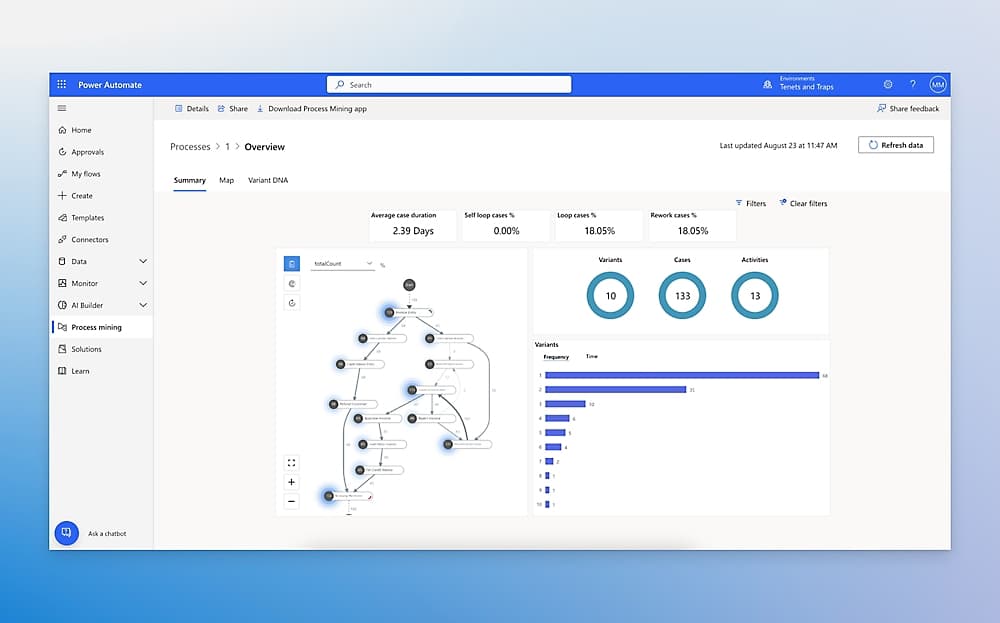
Power Automate is Microsoft's workflow automation tool. While Power Apps helps you build custom apps, Power Automate helps you connect apps together and automate the repetitive tasks that nobody wants to do by hand. It's essentially the "when this happens, do that" tool for Microsoft 365. If you've ever wished you could make Outlook, Teams, SharePoint, Excel, and your other business tools automatically work together, Power Automate is how you make that happen.
What You Can Do With It
Power Automate lets you automate repetitive tasks and connect different systems together so work happens automatically instead of manually. For example, you could create a workflow that takes information submitted through a Form and adds it to a List, automatically notifies a team in Teams when a document is uploaded to SharePoint, or saves email attachments to a specific location without anyone having to do the work themselves. The possibilities range from simple quality-of-life improvements to complex business processes. If you've ever caught yourself doing the same series of clicks over and over again, there's a decent chance Power Automate can do it for you.
Who should learn it?
If you're tech-savvy and have a process that you often repeat and you think it can be automated, this is the place to go.
Who can ignore it?
If your work is dynamic and you don't have many repetitive tasks, you can probably ignore this one.
My take
Power Automate is one of the coolest tools I've learned about in M365. I find a lot of people don't recognize how much of their workflows could be automated and save them a ton of time and stress. It is certainly not the easiest app in the world to learn, but it looks more intimidating than it is.
Power BI
Power BI is Microsoft's business intelligence and data visualization platform. While Excel is great for analyzing data, Power BI is designed to help you turn that data into interactive dashboards, reports, and visualizations that make it easier to understand what's happening in your business.
What You Can Do With It
Power BI helps you turn raw data into reports and dashboards that are much easier to understand than a giant spreadsheet. You can connect it to different data sources, build visuals, track key metrics, and share interactive reports with other people so they can explore the information themselves. If you're using excel all the time and find yourself hitting limitations when trying to visualize the data, that's where Power BI comes in.
Who should learn it?
Anyone who regularly works with data, reporting, dashboards, or business metrics should consider learning Power BI. Chances are, if someone truly needs Power BI for their role, they already know what it is. That said, if you've ever wanted to impress your boss by turning a messy spreadsheet into a polished, interactive dashboard, Power BI can help you get there surprisingly quickly.
Who can ignore it?
If the extent of your work with data begins and ends with the occasional one-off Excel spreadsheet, you can probably ignore Power BI. It's a specialized tool, and most people won't need to build dashboards or reports themselves.
My take
Power BI is one of those tools that makes me feel way smarter than I actually am. It's surprisingly approachable to get started with, and it doesn't take long to turn a boring spreadsheet into an interactive dashboard that looks impressive in a meeting. If you never work with data, you probably don't need to learn it. But if you're constantly living in spreadsheets, it's absolutely worth giving Power BI a shot.
Power Pages
Power Pages is Microsoft's website builder. It's part of the Power Platform and is designed to help organizations create websites that connect directly to business data, allowing people both inside and outside the organization to interact with information stored in Microsoft systems.
What You Can Do With It
You can spin up a simple website with forms, data displays, user authentication, and other basic interactive features without needing to build everything from scratch. If you've ever used a tool like Wix or Squarespace, the experience will feel somewhat familiar, although Power Pages is much more focused on business scenarios and integrating with your organization's data than creating a polished public website. The tradeoff is that you get tighter integration with the rest of the Power Platform, but fewer design and customization options than dedicated website builders.
Who should learn it?
If you're building customer portals, vendor portals, or some kind of externally accessible dashboard, it could be useful.
Who can ignore it?
Most people. Unless you're specifically responsible for web dev or creating ways where external users can interact with organizational knowledge, there's a pretty solid chance you will never need power pages.
My take
This one is pretty niche, and most people can safely disregard it. I'd even hazard a guess that the majority of people who could benefit from Power Pages are already intimately familiar with it. If you need it, you'll probably know you need it. If you're hearing about it for the first time in this blog, there's a good chance it's not something you should spend a lot of time learning.
Copilot Studio
Copilot Studio is Microsoft's platform for building custom AI agents. While the Copilot app lets you use AI, Copilot Studio lets you create your own AI-powered assistants that can answer questions, automate actions, interact with data, and help users complete specific business processes.
What You Can Do With It
An agent is like general AI that specializes in a specific task. Mitch and Matt use the analogy that regular AI is like taking your car to a dealership when you need body work done and an AI Agent is like taking it to the body shop. The dealership might be able to solve your problems but the body shop has that process nailed down and will be way more efficient.
Copilot Studio lets you build body shops for all kinds of problems you might have. Need to automate submitting receipts, have AI extract the data, and add it into Excel? You can do that.
Who should learn it?
I am of the mind that everyone that has access should mess around in Copilot Studio at least a little bit. Check out Mike's AI in the power platform video that we just made to get the ideas flowing about what you can do and then take a stab at building your own agent.
Who can ignore it?
Anyone who doesn't have a copilot premium license won't be able to benefit it.
My take
Copilot Studio is REALLY cool. The generative AI capabilities are impressive, and the flexibility of the platform feels limited more by your imagination than by the tool itself. As someone who focuses on creative marketing tasks rather than technical ones, I can still think of dozens of useful things I could build with it.
The "Best" of the rest
Clipchamp
Clipchamp is Microsoft's video editing app. It gives you a simple way to record, edit, and create videos without needing to learn a professional editing tool like Premiere Pro or DaVinci Resolve.
What You Can Do With It
Clipchamp lets you perform basic video editing tasks like trimming clips, combining footage, adding text, recording your screen, recording yourself with a webcam, and creating simple videos for work. It also includes AI-powered features and templates that help speed up the process of putting together presentations, training videos, social media content, and other everyday business videos.
Who should learn it?
If you frequently need to make simple videos or could benefit from a "Capcut in M365" then this might be useful for you.
Who can ignore it?
Most people. If you're never working with video, you can completely ignore it.
My take
As someone who spends a lot of time in Premiere Pro, Clipchamp is naturally not built for people like me. That said, I think it's pretty nifty that Microsoft has included basic video editing capabilities directly within OneDrive, SharePoint, and the broader Microsoft 365 ecosystem. I'd probably get more use out of it as a desktop app for quick clip trimming and simple edits if I were on Windows, but alas, I'm a Mac user.
Overall, I think the functionality is great to have. It delivers on what it promises to do and anything that makes video creation and editing more accessible to the average employee is a win in my book. Not everyone needs a professional editing suite, and for a lot of workplace scenarios, Clipchamp is probably all the video editor you'll ever need.
Sway
Sway is Microsoft's attempt at creating something that sits somewhere between a PowerPoint presentation and a website. Instead of building traditional slides, you create a scrolling, web-based experience that combines text, images, videos, and other content into a format that's easy to share with a link.
What You Can Do With It
Sway lets you create interactive reports, newsletters, presentations, project updates, and other content without worrying much about design or formatting. Rather than arranging everything slide-by-slide like PowerPoint, you add content blocks and let Sway handle the layout, resulting in something that feels more like a modern webpage than a presentation.
Who should learn it?
People who occasionally need to share information in a more engaging format than a document but don't want to build a full website might find Sway useful. It's especially appealing for internal communications, newsletters, and lightweight presentations.
Who can ignore it?
Most people. If you're already comfortable using PowerPoint, SharePoint, or website builders, there's a good chance you'll never run into a situation where Sway is the best tool for the job.
My take
My opinion on Sway has changed quite a bit while researching for this blog and our video. The more I learned about it, the more I realized it actually solves a problem a lot of people have. The issue is that most of those people will never know Sway exists in the first place.
From what I've seen, the functionality is solid and our team members who have used it have had good experiences with it. It's not trying to replace PowerPoint or build a full website. I still don't think it's a must-learn app, but it's one of the few apps on this list that I came away with a better opinion of than when I started.
Visio
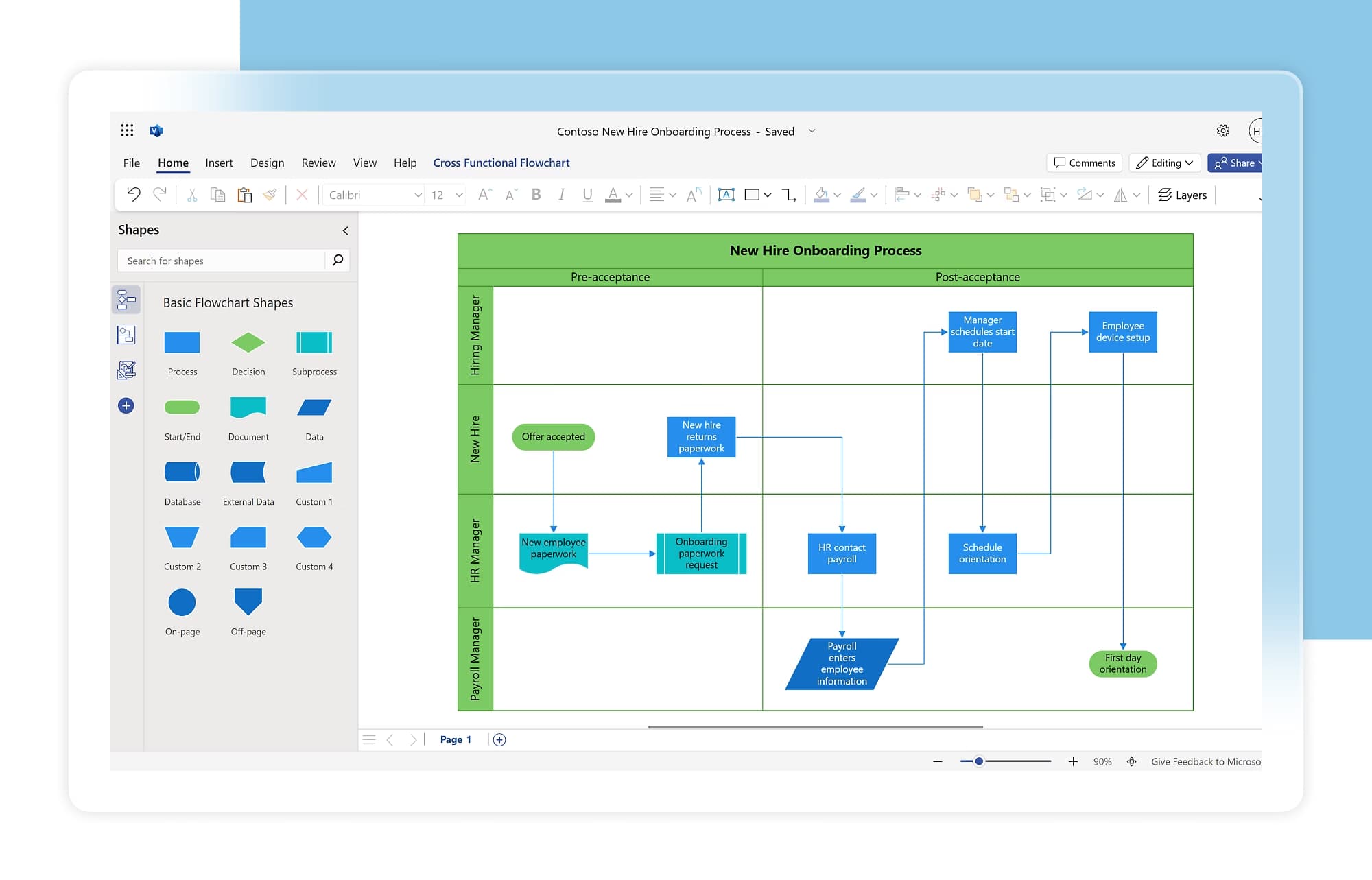
Visio is Microsoft's diagramming tool. If PowerPoint is for presentations, Visio is for diagrams. It's designed for creating process maps, flowcharts, organizational charts, network diagrams, floor plans, and other types of visual documentation.
What You Can Do With It
Visio helps you create structured diagrams without needing to build everything manually from shapes and text boxes. It includes templates and specialized tools for mapping processes, documenting systems, visualizing organizational structures, and creating technical diagrams that would be difficult or tedious to build in something like PowerPoint.
Who should learn it?
If you regularly create process diagrams, workflow maps, organizational charts, technical documentation, or system diagrams, Visio is worth learning.
Who can ignore it?
Most people. If the most complex diagram you've made recently was a few boxes connected by arrows in PowerPoint, you probably don't need Visio.
My take
I find Visio's feature set pretty limited unless you have access to the higher-end licensing tier. By the time you're paying for the more advanced capabilities, I'd personally rather use a purpose-built diagramming tool like FigJam, Miro, or something similar. The product isn't bad, but it falls into the "if I have to purposefully pay extra for this, I'd rather just pay for something else"
Publisher
Publisher is (was?) Microsoft's desktop publishing tool. It was intended to help people design marketing materials but the feature set was relatively limited and the Publisher app is being phased out and users are being pushed to do the same work in Word or PowerPoint instead.
What You Can Do With It
Publisher was built to help people create marketing materials and printed documents without needing professional design software. It filled a niche somewhere between Word, PowerPoint, and dedicated design tools by providing templates and layouts specifically geared toward printed content.
Who should learn it?
No one! If it sounds like it would have been helpful for you, check out the table below to see what tool Microsoft recommends using instead
Who can ignore it?
Everyone!
My take
We really only included Publisher in the video to keep the keyboard warriors out of the comments section, but technically it still exists, so it earned a spot in the blog too. Thankfully, we've finally reached the end of the Microsoft 365 app catalog.
If you've made it this far, congratulations. You now know more about the Microsoft 365 app ecosystem than most people who use it every day. If your IT team could immediately tell you what Sway, Visio, and Publisher are off the top of their heads, I would be pretty impressed.